
How Does PlayStation Remote Play on PC Work?
For PlayStation Remote Play, PC owners install Sony’s free PS Remote Play app, sign in with the same account as their PS5 or PS4, and stream the console’s games to the computer. You need Windows 10 or 11, a DualSense or DualShock 4 connected by USB, and at least 5 Mbps, with 15 Mbps recommended.
| Requirement | Details |
|---|---|
| Windows PC | Windows 10 (64-bit) or 11, 7th Gen Intel Core or later, 2 GB RAM |
| Mac | macOS Big Sur or later |
| Console | PS5 or PS4 with the latest system software |
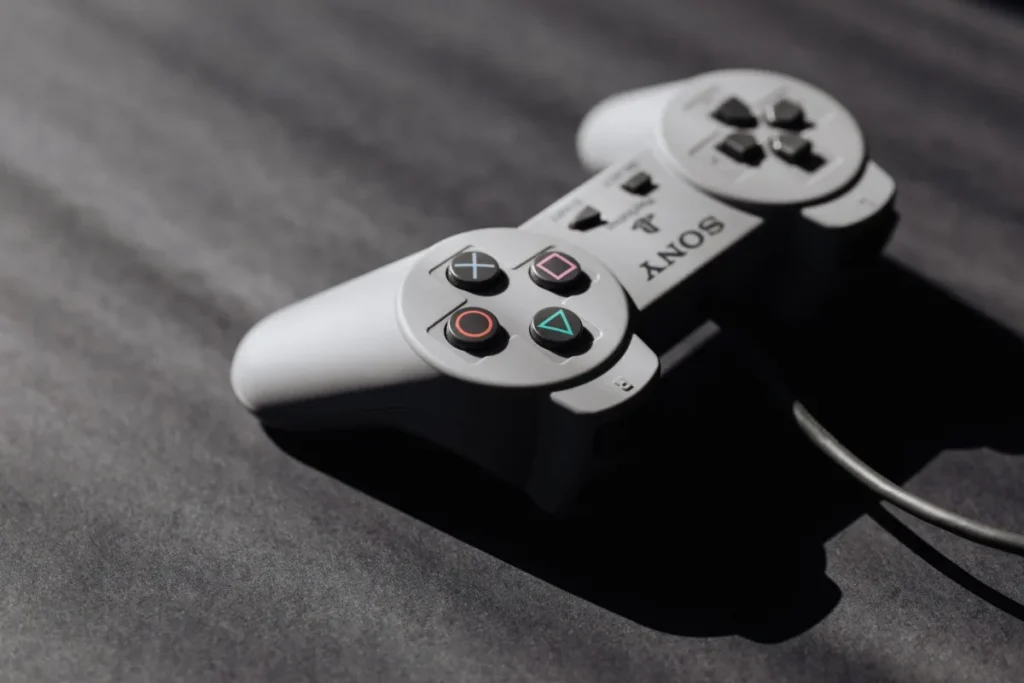
| Controller | DualSense, DualSense Edge or DualShock 4, connected by USB |
| Internet | 5 Mbps minimum, 15 Mbps recommended (upload and download) |
| Cost | Free |
Requirements are from Sony’s official Remote Play on PC and Mac guide. Remote Play streams from your own console; for Sony’s server streaming, see our PlayStation cloud gaming guide.
Set Up the Console
- PS5: Settings, then System, then Remote Play, and turn on Enable Remote Play.
- PS5 rest mode: Settings, then System, then Power Saving, then Features Available in Rest Mode. Turn on Stay Connected to the Internet and Enable Turning on PS5 from Network.
- PS4: Settings, then Remote Play Connection Settings, and turn on Enable Remote Play. Also set it as your primary PS4.
PlayStation Remote Play: PC Setup Steps
- Install the app. Download PS Remote Play from Sony’s official Remote Play page and run the installer.
- Prepare the console. Turn it on or put it in rest mode with the settings above.
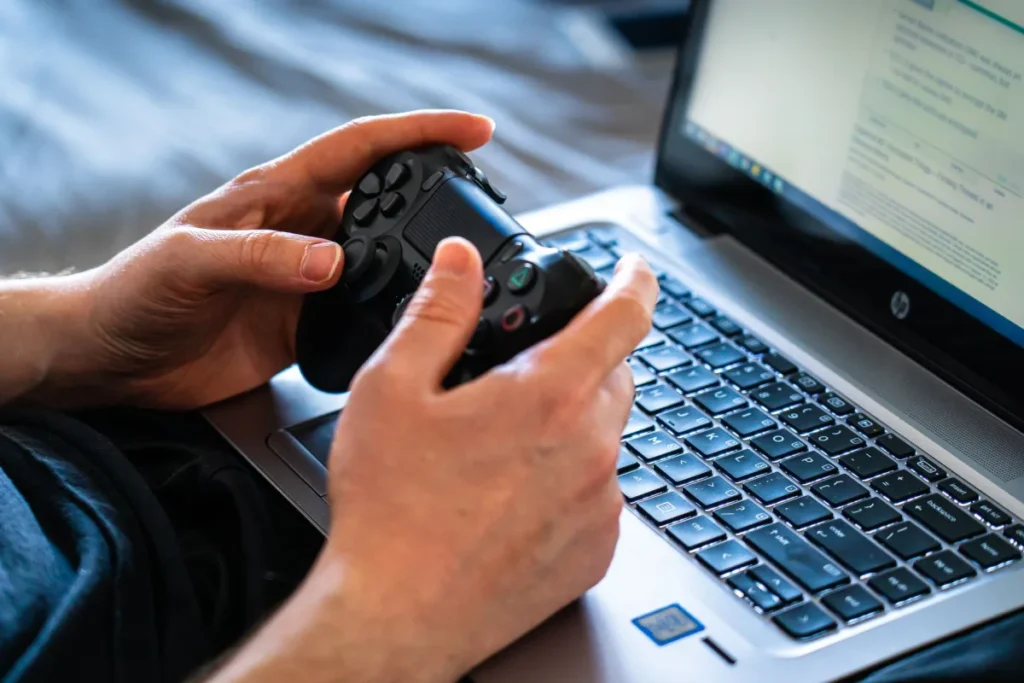
- Connect the controller. Plug your DualSense or DualShock 4 into the PC with a USB cable.
- Sign in. Open the app and sign in with the account used on the console.
- Choose your console. Select PS5 or PS4 and wait for the connection.
If the app cannot find the console, pair manually: on PS5 go to Settings, then System, then Remote Play, then Pair Device, and type the code into the app.
Stream stuttering?
Wired connections fix most Remote Play lag. Our lag guide covers the network side.
Fix gaming lagTips for a Smooth Stream
- Connect the console to the router with Ethernet.
- Use 5 GHz Wi-Fi or Ethernet on the PC.
- Lower resolution in the app’s settings if the picture breaks up.
- Close downloads on both devices.
Sony’s Remote Play troubleshooting page lists connection fixes. Prefer to use a PS5 pad in PC games too? Our controller for Steam guide covers Steam Input.
Common Mistakes
- Signing in with a different account than the console.
- Leaving rest mode network features off.
- Using a charge-only USB cable for the controller.
- Streaming from a console on Wi-Fi far from the router.
For console-side problems, start with our PlayStation fix guide.
App can’t find your PS5?
Tell us your network setup and any error code. We will help you connect.
Ask GamingFixFrequently Asked Questions
How long does it take to set up Remote Play on PC?
Installing the app and changing console settings takes about ten minutes. The first connection can take a minute or two while the app finds your console. After that, connecting usually takes under a minute, especially when the console is in rest mode with network features on.
What do I need before setting up Remote Play?
You need a Windows 10 or 11 PC (or a supported Mac), a PS5 or PS4 with up-to-date software, a DualSense or DualShock 4 with a USB cable, and the same PlayStation Network account on both. A connection of at least 15 Mbps is recommended.
What are common mistakes with Remote Play on PC?
Common mistakes include using different accounts, leaving rest mode network options off, and streaming over weak Wi-Fi. Some people also use charge-only cables, so the controller never connects. Wiring the console to the router solves most quality problems.
Can I use Remote Play away from home?
Yes, if your home connection’s upload speed is good enough. Sony recommends at least 15 Mbps upload and download. Results depend on both networks, so expect lower quality on hotel or mobile connections. Some network types, like strict carrier NAT, may block remote connections.
Can I use an Xbox controller with PS Remote Play?
Sony only lists DualSense, DualSense Edge and DualShock 4 as supported controllers for the PC app. Other controllers may not work reliably. Use a PlayStation pad for the best experience with Remote Play on PC.