


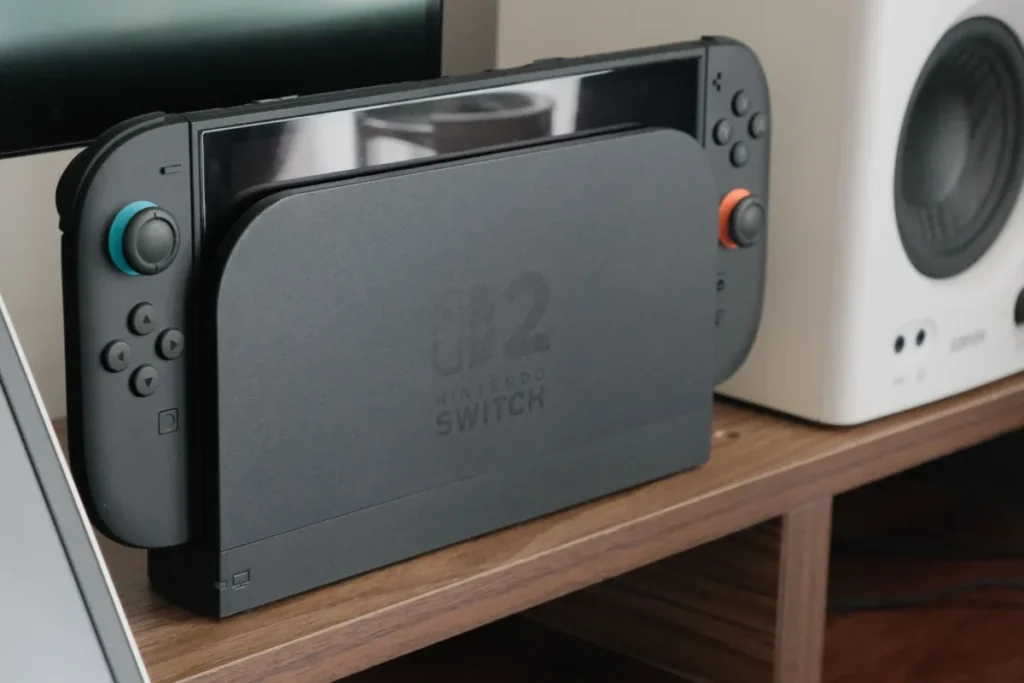
Nintendo Switch Guide: Setup in Brief
This Nintendo Switch guide covers first setup in six steps: choose your language and region, connect to Wi-Fi, install the system update, sign in or create a Nintendo Account, transfer data from an old Switch if you have one, then set parental controls and eShop password settings. The whole process takes about 30 minutes.
| Step | Why it matters | Time |
|---|---|---|
| Wi-Fi and system update | Fixes bugs, needed for online features | 10 min |
| Nintendo Account | Purchases, saves and online play | 5 min |
| Data transfer | Moves users and saves from an old Switch | 10+ min |
| Parental controls | Limits content, spending and play time | 5 min |
| eShop security | Stops accidental purchases | 2 min |
| Nintendo Switch Online | Online play and cloud saves | Optional |
Setting up several devices? Our gaming checklist covers every platform.
Step-by-Step First Setup
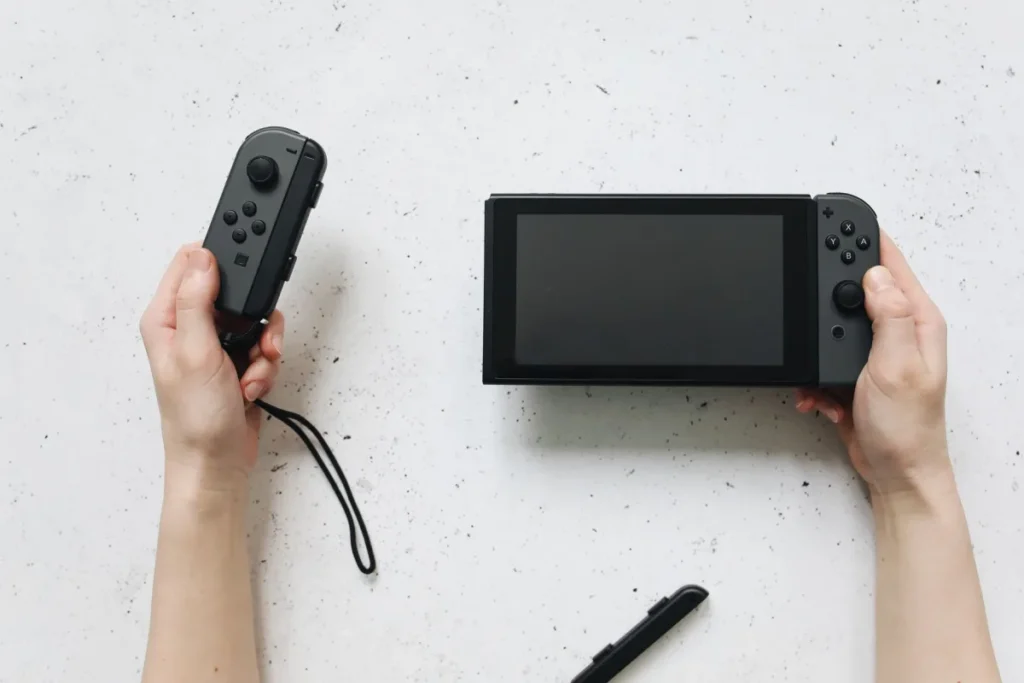
- Charge and power on. Attach the Joy-Con and connect the AC adapter for the first setup.
- Connect to Wi-Fi. Choose your network; use 5 GHz if available near the router.
- Install the update. Accept the system update when offered, or later in System Settings, then System.
- Add your Nintendo Account. Sign in or create one; this links purchases and the eShop.
- Transfer data if upgrading. Follow the on-screen option to move data from an old Switch.
Parental Controls and Spending
Install the Nintendo Switch Parental Controls app on your phone and link it to the console. Set age limits, daily play time and communication limits. Then, in your Nintendo Account settings, require a password for eShop purchases to prevent surprise charges.
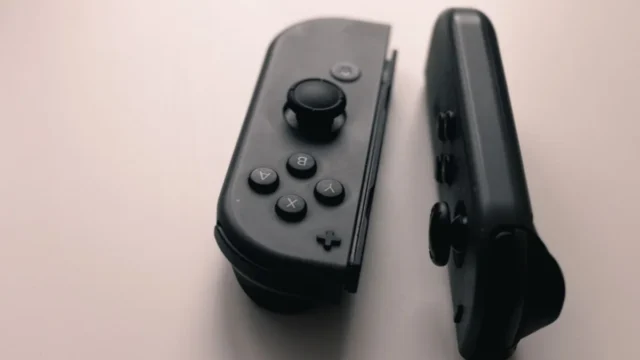
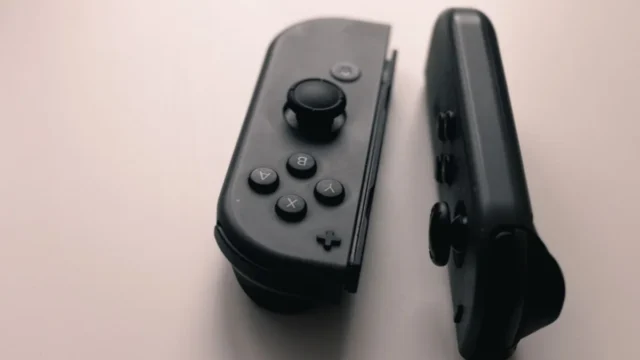
Joy-Con not connecting during setup?
Our pairing guide covers Joy-Con, Joy-Con 2 and Pro Controllers.
Fix Switch controller pairingAfter Setup
- Storage: add a microSD card; Switch 2 requires microSD Express cards for games.
- Codes: redeem gift cards and games with our Nintendo Switch codes guide.
- TV settings: turn on Game Mode on your TV.
- Account security: turn on 2-step verification at accounts.nintendo.com.
Nintendo lists Switch 2 display and storage specs on its official tech specs page.
Common Mistakes
- Skipping the system update before downloading games.
- Letting kids use the parent’s account.
- Leaving eShop purchases without a password.
- Buying the wrong type of microSD card for Switch 2.
Something not working? Our fix Nintendo Switch guide covers common problems. Need to change your account email later? See our Nintendo email guide.
Stuck on a setup screen?
Tell us which step and what you see. We will help you finish.
Ask GamingFixFrequently Asked Questions
How long does it take to set up a Nintendo Switch?
Basic setup takes about 30 minutes, including the system update. Transferring data from an old Switch adds time depending on how much you move. Downloading games afterwards depends on their size and your connection.
What do I need before setting up a Switch?
You need Wi-Fi, an email for your Nintendo Account (adults), a phone for the Parental Controls app if children will play, and your old Switch nearby if you plan to transfer data. Charge the console first.
What are common mistakes when setting up a Switch?
Common mistakes include skipping the update, letting children use an adult account, leaving eShop purchases without a password, and buying incompatible microSD cards. Setting up parental controls later often gets forgotten, so do it during setup.
Do I need Nintendo Switch Online?
You need it for online play in most games and for cloud save backups in supported games. Some free-to-play games, such as Fortnite, play online without it. You can set up the console fully without a subscription.
Can I move my games from Switch to Switch 2?
Yes. Nintendo provides a data transfer option during Switch 2 setup to move users and save data. Digital games can be redownloaded from your Nintendo Account, and most Switch 1 games run on Switch 2.