

Nintendo Switch Controller Not Connecting: How to Fix It
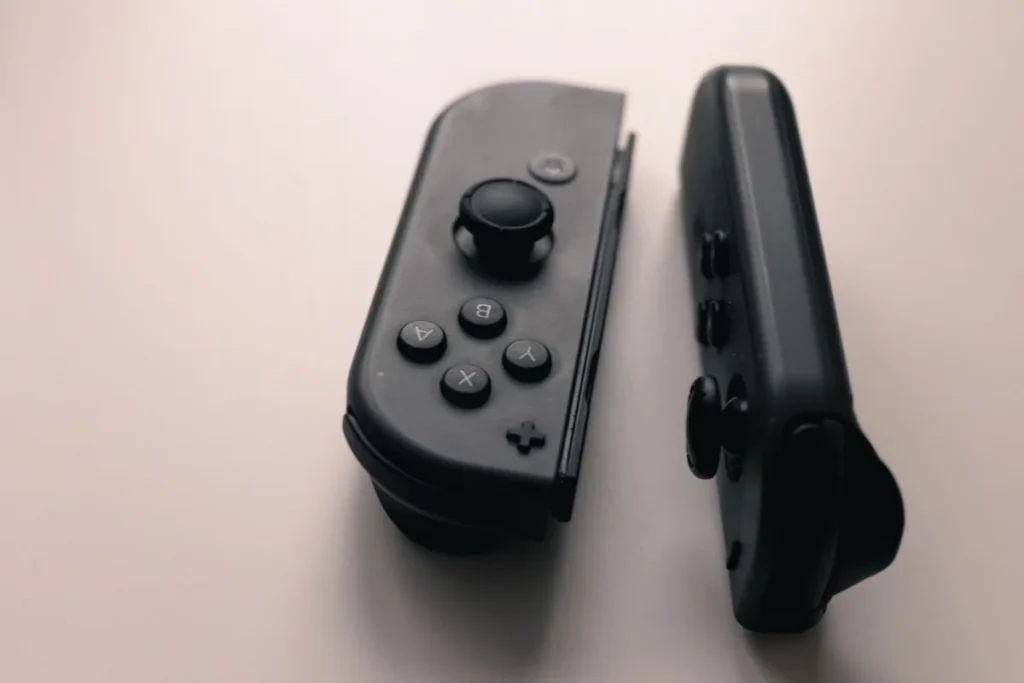
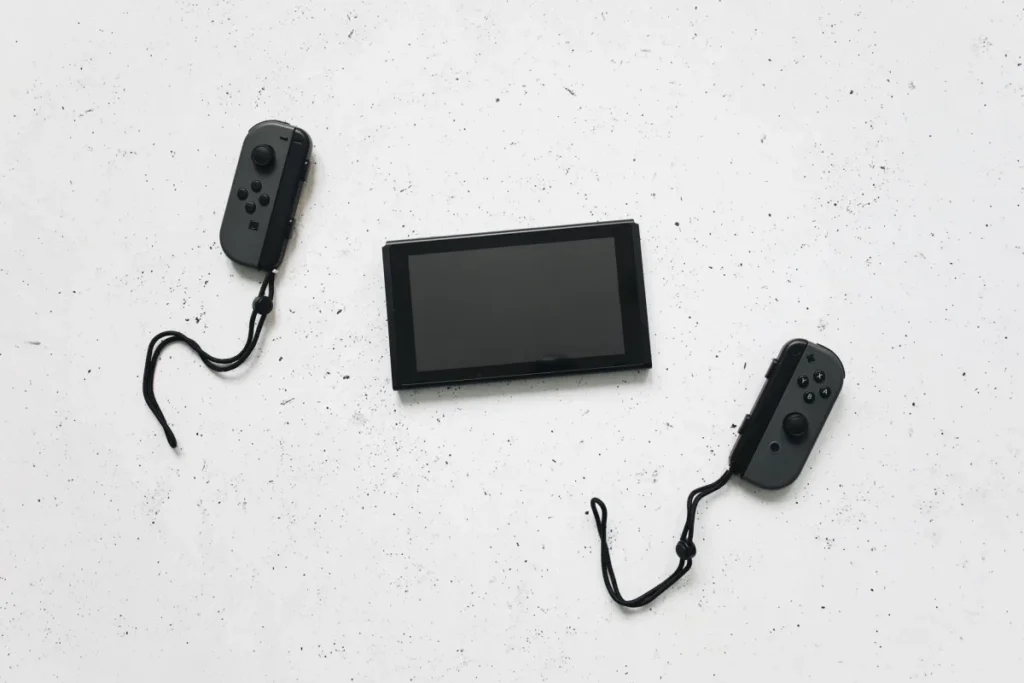
For a Nintendo Switch controller not connecting, attach Joy-Con to the console to pair them automatically. For a Pro Controller, open Controllers on the HOME Menu, choose Change Grip/Order, and press the SYNC button on top of the controller. Also check that airplane mode is off and the controller is charged.
| Controller | How to pair |
|---|---|
| Joy-Con (Switch) | Slide onto the console rails until they click |
| Joy-Con 2 (Switch 2) | Attach to the console magnetically |
| Pro Controller | Change Grip/Order, then press SYNC; or connect by USB-C while docked with wired communication on |
| Licensed third-party pads | Follow the maker’s sync method on the Change Grip/Order screen |
If the controller connects but misbehaves, use our Switch controller not working guide.
Quick Checks First
- Turn off airplane mode in Quick Settings.
- Charge the controller by attaching it or plugging it in.
- Update the console in System Settings, then System.
- Check how many controllers are connected; some games limit the number.
Step-by-Step Pairing
- Open Controllers. On the HOME Menu, select Controllers.
- Choose Change Grip/Order. The console now waits for controllers.
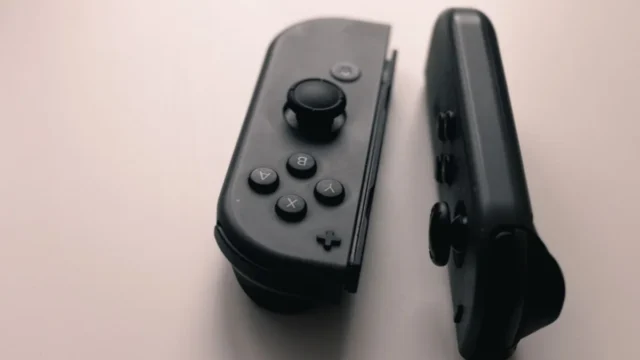
- Press SYNC. On a detached Joy-Con, press the small SYNC button on the rail side. On a Pro Controller, press SYNC on top next to the USB-C port.
- Watch the lights. The player lights move, then show the assigned player number.
- Press L and R. Confirm the grip on the screen as prompted.
Nintendo shows these steps in its Joy-Con pairing guide. If Joy-Con pair attached but not wirelessly, see its wireless pairing page.
No lights at all when you press SYNC?
That is a power problem. Follow our steps for controllers that will not turn on.
Fix a controller not turning onPro Controller by Cable
When docked, you can connect a Pro Controller with a USB-C cable. Turn on Pro Controller Wired Communication in System Settings, then Controllers and Sensors. This pairs it and tests whether wireless is the problem.
Common Mistakes
- Leaving airplane mode on.
- Pressing SYNC outside the Change Grip/Order screen.
- Pairing a controller already linked to a second console nearby.
- Using non-licensed adapters that need their own firmware.
Using other brands’ pads? Our Xbox controller on Switch guide explains what works. Console problems beyond controllers are in our fix Nintendo Switch guide.
Still not pairing?
Tell us the controller and what the lights do. We will suggest the next step.
Ask GamingFixFrequently Asked Questions
How long does it take to pair a Switch controller?
Pairing takes under a minute: attach Joy-Con to the console, or use Change Grip/Order and press SYNC on a Pro Controller. Updating the console or controllers first can add a few minutes. If a controller is drained, charge it for at least 30 minutes before pairing.
What do I need before pairing?
You need a charged controller, the console turned on with airplane mode off, and access to the HOME Menu’s Controllers option. For wired Pro Controller pairing, you need a USB-C cable and the console in its dock.
What are common mistakes when pairing Switch controllers?
The most common mistakes are leaving airplane mode on, pressing SYNC without opening Change Grip/Order, and using a drained controller. Pairing near another Switch can also link the controller to the wrong console, so turn other consoles off.
How many controllers can connect to a Switch?
The Switch supports up to eight wireless controllers in many situations, but the number depends on the game and on the types of controllers connected. Some features, like local wireless play, reduce the limit. Check the game’s details when playing with many people.
How do I pair Joy-Con 2 with Switch 2?
Attach Joy-Con 2 to the Switch 2 console to pair them, or use the Change Grip/Order option for wireless pairing. Joy-Con 2 attach magnetically. Nintendo’s Switch 2 support pages explain model-specific pairing if the steps on screen differ.
2 comments