


Nintendo Switch Controller Not Working: The Quick Fix
A Nintendo Switch controller not working usually needs a restart, a controller update or recalibration. Restart the console, then go to System Settings, then Controllers and Sensors, and choose Update Controllers. If inputs are wrong or drift, calibrate the sticks there too. Attach Joy-Con to the console to re-register them.
| Symptom | Likely cause | Fix |
|---|---|---|
| Buttons or sticks do nothing | Controller not registered or asleep | Attach Joy-Con to the console, press a button |
| Wrong or jumpy inputs | Calibration or dirt | Calibrate, clean around the stick |
| Character moves alone | Stick drift | Calibrate, then repair if it returns |
| Lag or drops when detached | Wireless interference | Move closer, remove interference |
| Not detected on the rail | Rail contact or console issue | Reseat firmly, restart, check rails |
| Won’t pair at all | Pairing | See the pairing guide |
Pairing problems have their own walkthrough in our Switch controller not connecting guide. Dead controllers belong in our not turning on guide.
Step-by-Step Fix
- Restart the console. Hold POWER for three seconds, choose Power Options, then Restart.
- Update controllers. Open System Settings, then Controllers and Sensors, then Update Controllers.
- Calibrate. In the same menu, choose Calibrate Control Sticks and follow the prompts.
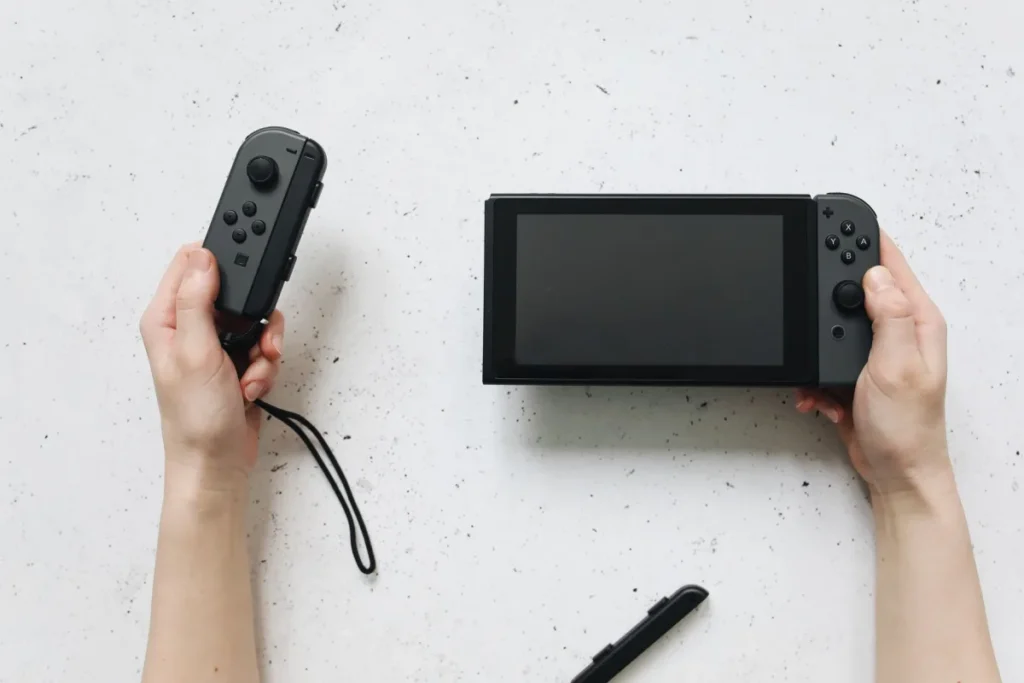
- Re-register Joy-Con. Slide them onto the console until they click, then detach.
- Test inputs. Use Test Input Devices in Controllers and Sensors to check every button and stick.
Nintendo explains calibration in its official calibration guide.
Wireless Lag and Dropouts
Detached Joy-Con use Bluetooth and are sensitive to interference. Sit closer to the console, move it out of cabinets, and keep phones, routers and metal objects away from the dock. Nintendo lists more causes on its wireless response troubleshooting page.
Stick moving on its own?
Drift is a hardware wear problem with its own safe fixes and repair options.
Read the stick drift guideJoy-Con Not Detected on the Rail
Push the Joy-Con fully down until it clicks. Check the rail for dirt or damaged contacts, and try the other Joy-Con on the same side. If neither works on one side, the console’s rail may need repair.
Common Mistakes
- Skipping controller updates after a system update.
- Spraying cleaner into the stick or rail.
- Using cheap third-party grips that block the rails.
- Opening the Joy-Con under warranty.
For console-wide problems, see our fix Nintendo Switch guide. Want to use other pads on Switch? Read our Xbox controller on Switch guide.
Still misbehaving after every step?
Tell us the controller, the symptom and your console model. We will help you decide on repair.
Ask GamingFixFrequently Asked Questions
How long does it take to fix a Switch controller?
A restart, controller update and stick calibration together take about ten minutes. Testing inputs adds a couple of minutes. Hardware problems such as drift or a damaged rail need repair through Nintendo, which can take one to several weeks including shipping.
What do I need before troubleshooting?
Have the console charged and connected to the internet for controller updates. Charge the Joy-Con by attaching them to the console or a charging grip. If you use a Pro Controller, have its USB-C cable ready for charging and wired testing.
What are common mistakes with Switch controller problems?
Common mistakes include skipping updates, calibrating while touching the sticks, and using cleaners that damage contacts. Some people also blame the controller when interference from a dock inside a cabinet is the real cause of detached lag.
Do these fixes work on Switch 2 Joy-Con 2?
Mostly. Switch 2 has similar controller settings for updates, calibration and testing, though menu names can differ slightly. Joy-Con 2 attach magnetically rather than sliding on rails, so rail tips do not apply. Check Nintendo’s Switch 2 support pages for model-specific steps.
Why do my Joy-Con work attached but not detached?
That points to a wireless problem. Make sure airplane mode is off, move closer to the console and reduce interference. If one Joy-Con keeps dropping while the other works, re-pair it by attaching it, and contact Nintendo if the issue continues.